
How to use the Samera Associate Tax Calculator
A step-by-step guide for self-employed associate dentists who want to know what they owe HMRC before January arrives.
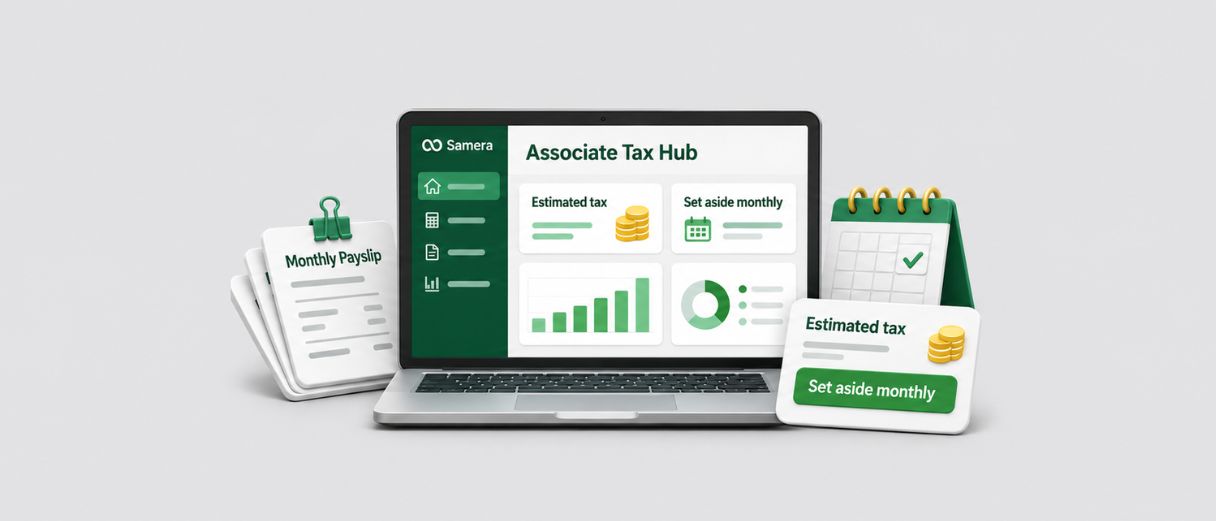
You work at two practices. Maybe three. Each one sends a payslip in its own format, with its own lab fees and its own deductions. By the end of the tax year you have a folder of PDFs and no clear idea of your tax bill.
The Samera Associate Tax Calculator fixes that. You enter the figures from each payslip as the months go by. The calculator adds up every practice, takes off your expenses, and shows you an estimated tax bill. It also tells you how much to set aside each month.
This guide walks you through the calculator from sign-up to your first dashboard. Set aside about 10 minutes for the first session if you have your payslips to hand.
Good to know: the calculator gives you estimates based on the figures you enter. It is not tax advice and it does not file a return with HMRC. For a confirmed position, book a call with a Samera tax expert. We show you how in Step 7.
Before you start
Gather these first. It makes the first session quicker.
- Your monthly payslips from every practice you work at
- Your GDC registration number
- Your National Insurance number
- Your UTR (the 10-digit Unique Taxpayer Reference from HMRC)
- Your P60 or P45, if you also have employed work such as NHS salaried sessions or a hospital contract
- Receipts for business costs you paid yourself, such as indemnity, CPD or travel
- Figures for any rental income, savings interest or dividends
You do not need everything on day one. You can come back and add figures as each payslip arrives.
Step 1: Create your account and sign in
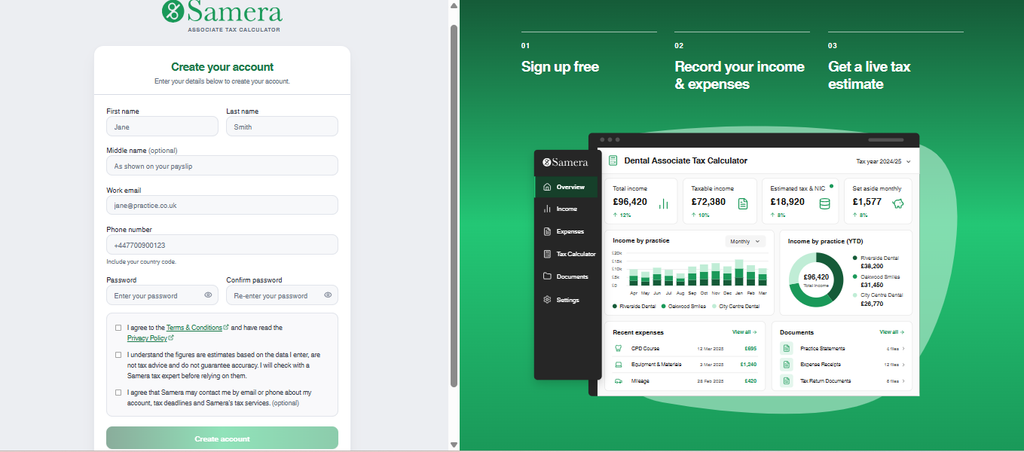
Go to associate-tax-hub.samera.co.uk and click Create one under the login box.
- Enter your first name and last name. Add a middle name only if it appears on your payslip.
- Enter your work email and phone number. Include the country code, for example +44.
- Choose a password of at least 8 characters and enter it again to confirm.
- Tick the two required boxes. The first accepts the Terms & Conditions and Privacy Policy. The second confirms you understand the figures are estimates, not tax advice.
- Tick the third box if you would like Samera to contact you about your account, tax deadlines, and services. This one is optional.
- Click Create account. The button turns green once both required boxes are ticked.
Next time, sign in from the Login to your account page with your email and password. Forgotten it? Use the Forgot password? link.
Turn on two-factor sign-in
We recommend this for extra protection. Go to My Profile and switch on Two-factor sign-in under Sign-in security. From then on, each time you sign in, the calculator emails you a 6-digit code. Enter it after your password and click Verify.
Step 2: Complete your profile
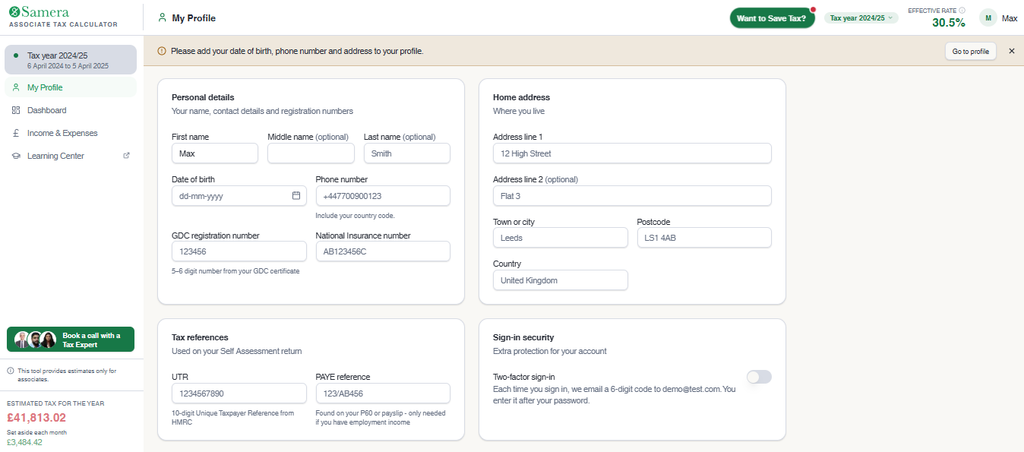
Your name carries over from sign-up. Open My Profile from the left menu and fill in the rest. A yellow reminder bar stays at the top of the screen until your date of birth and phone number are in.
| Field | Where to find it |
|---|---|
| Date of birth | Enter as dd-mm-yyyy |
| Phone number | Include your country code |
| GDC registration number | The 5 or 6 digit number on your GDC certificate |
| National Insurance number | Your payslip, P60 or HMRC letters (format AB123456C) |
| UTR | The 10-digit number HMRC sent when you registered for Self-Assessment |
| PAYE reference | Your P60 or payslip. Only needed if you have employment income |
Choose your tax year
Use the tax year selector at the top of the screen before you enter any figures. Everything you add is saved against the year shown. The left menu confirms the dates, for example 6 April 2024 to 5 April 2025.
Step 3: Add your practices and payslips
This is where most of your figures go. Open Income & Expenses from the left menu.
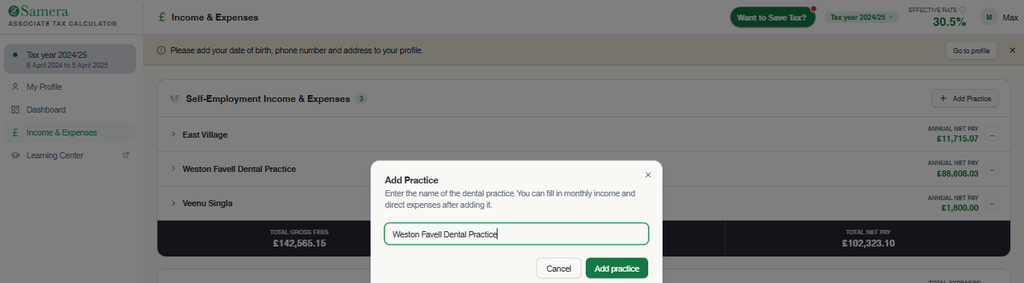
- Click Add Practice and type the practice name. A monthly table opens for that practice, running April to March.
- In the Gross Fees row, enter the gross figure from each month’s payslip.
- In the Direct expenses rows, enter what the practice deducted on that payslip. The calculator lists Lab Fees, Materials, Statutory Levy and NHS Pension.
- Check the Net Pay row. The calculator works it out for you.
- Repeat for every practice you work at. Each one shows its own annual net pay.
The one check that matters: your Net Pay for each month should match the net figure on that month’s payslip. If it does not, a deduction is missing.
Add a deduction that isn’t listed
Some practices deduct items outside the four standard rows, such as bank charges. Click Add Custom Expense under that practice, give it a name, and enter the amounts. You can delete a custom row at any time.
See your totals
A summary bar under your practices shows your total gross fees, total direct expenses, and total net pay across all practices. Left a practice? Remove it with the minus button beside its name.
Step 4: Add expenses you pay yourself
Scroll down to Allowable Business Expenses (Monthly). This section is for costs you pay out of your own pocket, outside your payslips, for your work as a dentist.
The difference is simple:
| Type | Who pays it | Example |
|---|---|---|
| Direct expense (Step 3) | The practice takes it off your payslip | Lab fees deducted by the practice |
| Allowable expense (Step 4) | You pay it yourself | Your indemnity cover or a CPD course |
Enter each cost in the month you paid it. The calculator lists these categories:
- Subscriptions
- Travel
- Accountancy
- Laundry
- Printing
- Home Office
- Mobile
- CPD/Courses
- Equipment
- Indemnity
- Mileage
- Entertaining
Paid for something else? Click Add Custom Expense and name it, for example “Course fee”.
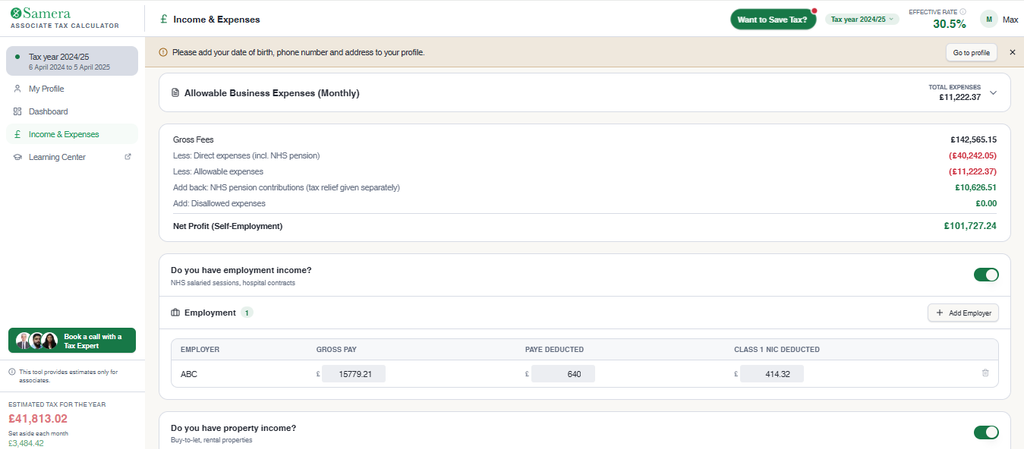
Your net profit, worked out for you
Below the expenses, the calculator builds your self-employed profit with no input from you. It starts with your gross fees, takes off direct and allowable expenses, then adds back NHS pension contributions. That add-back can look odd. It happens because tax relief on NHS pension is given separately, so the calculator keeps the figures right.
Step 5: Add any other income
Many associates earn from more than one place. Each income type has its own yes/no switch. Turn on only the ones that apply and the page stays short.
Employment income (NHS salaried sessions, hospital contracts). Click Add Employer. From your P60 or P45, enter the gross pay, the PAYE tax deducted and the Class 1 National Insurance deducted.
Property income (buy-to-let, rental properties). Click Add Property. Enter the monthly gross rent, expenses, and mortgage interest. The calculator works out your net rental income.
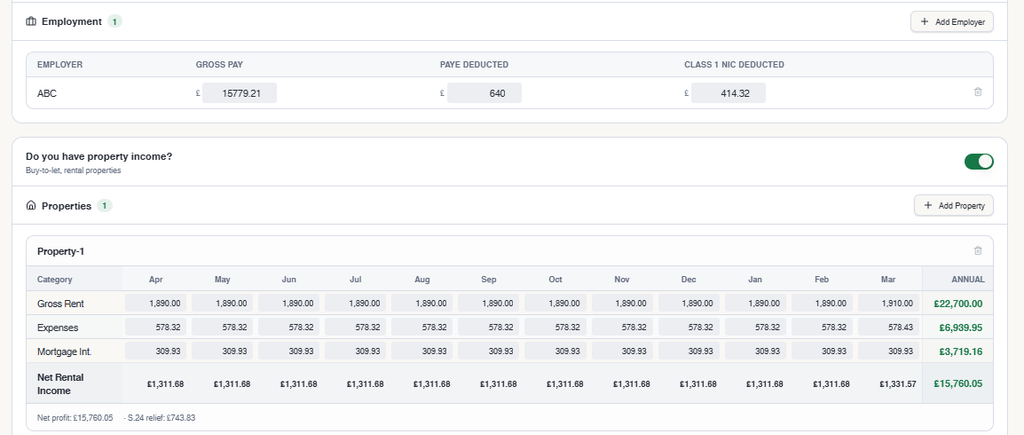
Savings interest (bank accounts, building societies). Click Add Account and enter the bank name and the gross interest you received.
Dividend income (shares, investments). Click Add Source and enter the company or fund and the amount.
To remove an employer, account or source, click the bin icon. The calculator asks you to confirm because the deletion cannot be undone.
Student loan
Answer Yes, No or Not sure. This one matters. On a Self-Assessment return, HMRC works out student loan repayments on your total income, including self-employed profits, and adds them to your 31 January bill. The calculator’s estimates do not include student loan repayments. If you answer Yes or Not sure, use Check my student loan position with a Tax Expert.
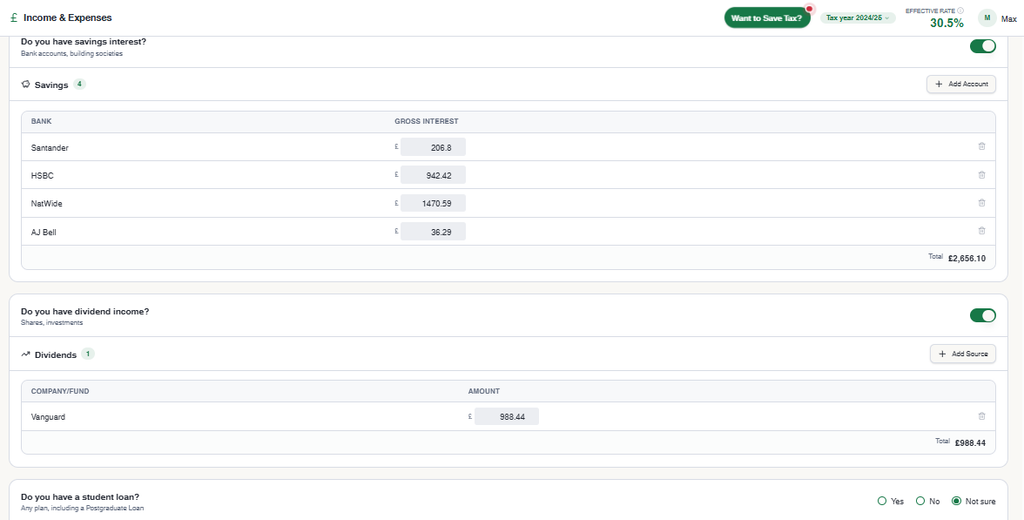
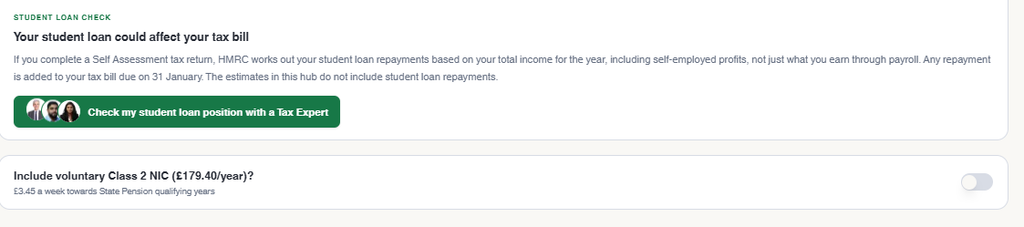
Voluntary Class 2 National Insurance
The last switch lets you include voluntary Class 2 contributions (£179.40 a year, or £3.45 a week). These count towards your State Pension qualifying years. It is optional.
Step 6: Read your dashboard
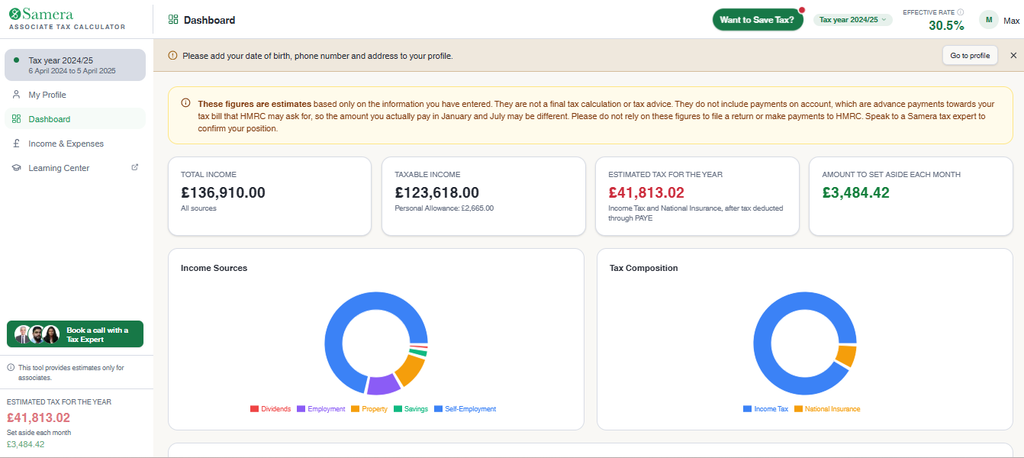
Open Dashboard from the left menu. It updates as you enter figures. There is nothing to fill in here.
The four cards at the top tell you most of what you need:
| Card | What it tells you |
|---|---|
| Total income | Everything you earned this tax year, from all sources |
| Taxable income | Income after your Personal Allowance |
| Estimated tax for the year | Income Tax and National Insurance, after any tax already taken through PAYE |
| Amount to set aside each month | What to move into a separate account each month so the bill is covered |
The last card is the one to act on. Set up a standing order for that amount and your January bill stops being a surprise.
Below the cards, four charts show:
- Income sources: how your income splits across self-employment, employment, property, savings, and dividends
- Tax composition: how much of your bill is Income Tax and how much is National Insurance
- Monthly gross fees by practice: what each practice paid you, month by month
- Cumulative vs projected annual: your earnings so far against where the year is heading
Two figures follow you around the calculator. Your effective tax rate sits at the top right. Your estimated tax and monthly set-aside sit at the bottom of the left menu.
Step 7: Get help from a tax expert
The calculator shows you where you stand. A Samera tax expert can tell you what to do about it. There are two ways to book a call:
- Click Want to Save Tax? at the top of any page. It opens a quick tax savings check and asks whether you are claiming everything you are entitled to. Use of home, business mileage, professional subscriptions, and pension contributions are easy to miss. Click Book a call with a Tax Expert.
- From the student loan question, click Check my student loan position with a Tax Expert.
Both take you to a booking page. Choose Making Tax Digital Consultation or Accountancy and Tax Services, then pick a time that suits you.
Want to reduce your tax bill? Our tax planning for dentists service can help you identify legitimate tax-saving opportunities and plan ahead.
Troubleshooting and FAQs
I cannot create my account
Check the red message under each field:
- First name / Last name is required: both are needed
- Enter a valid email address: check for a typing slip
- Enter your phone number with country code: start with +44 for a UK number
- Password must be at least 8 characters: choose a longer one
The Create account button stays grey until both required boxes are ticked.
My estimate jumped after I entered a figure
Check for a typing slip. One extra zero in an expense can wipe out your profit and drop your effective rate close to zero. Glance at the effective rate and set-aside figure after each entry. If either moves sharply, check the last number you typed.
My Net Pay does not match my payslip
A deduction is missing or in the wrong row. Compare each line on the payslip with the practice table. Add anything missing with Add Custom Expense.
Why might my real tax bill differ from the estimate?
The calculator only knows what you enter. It does not include payments on account, which HMRC may ask for in January and July. It does not include student loan repayments either. Speak to a Samera tax expert to confirm your position before you file or pay.
Can I file my tax return through the calculator?
No. The calculator estimates your tax and keeps your figures organised. It does not submit anything to HMRC.
Make it a monthly habit
The calculator works best little and often. When a payslip lands, open the calculator, add the figures and check that Net Pay matches. It takes a few minutes per practice. By the end of the tax year you will know your bill, and you will have put the money aside to pay it.

See your tax position before January with the Dental Associate Tax Calculator
Track income across every practice, estimate income tax and class 4 National Insurance, and see how much to set aside each month. Built for self-employed dental associates.
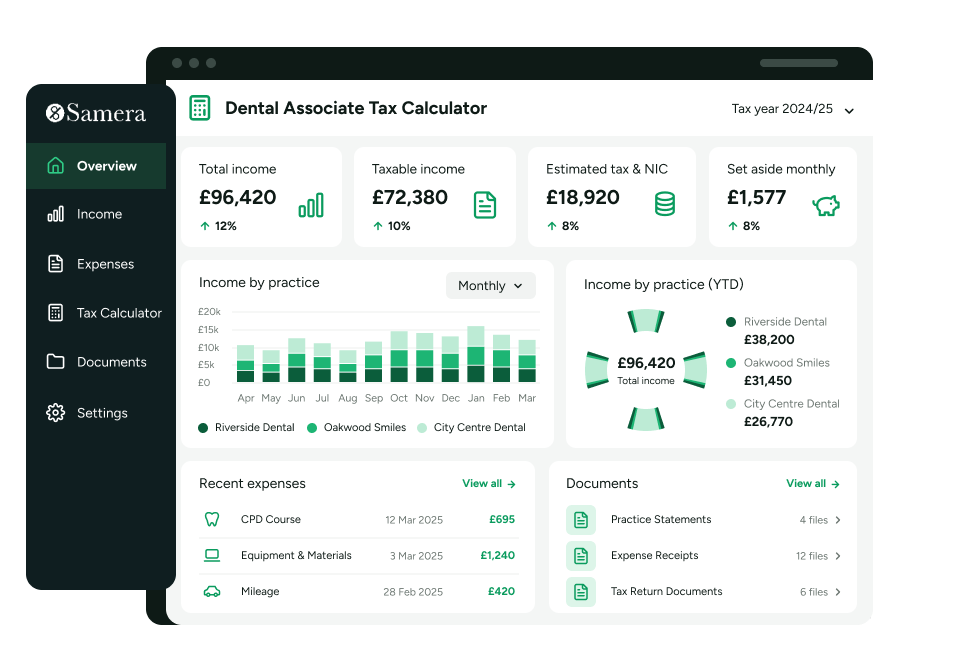
Track income across practices
Bring earnings from every practice into one place.
Estimate tax as you go
See your likely tax bill through the year.
Log expenses and documents
Keep records organised for your accountant.
Want a second pair of eyes on your figures? Book a call with a Samera tax expert from inside the calculator.
Learn more: Related Articles
About the Author

Rajesh Jain
Rajesh Jain is a content strategist with more than 15 years of experience in training, learning design and professional writing. He has led capability development programmes for global teams at leading corporates and holds a degree in Accounting and Business Management.
As Senior Content Writer at Samera, Rajesh leads content strategy and competitor analysis, and writes blogs, articles and product guides for dentists and practice owners. He draws on the expertise of the firm’s accountants and business advisers to turn complex subjects into clear, practical advice that helps readers start, grow and sell their practices.
Reviewed by:

Arun Mehra
Samera Founder & CEO
Arun Mehra is a specialist adviser to dental practice owners, with extensive experience across practice acquisitions, finance, growth and business strategy. As CEO of Samera, he works closely with dentists at every stage of ownership.

Deepak Madolia
Project Manager – Clever Practice
Deepak Madolia has over 10 years’ experience across accounting, taxation, offshoring and team development. With an MBA in Finance & Accounts, he has worked extensively with UK businesses and accounting teams, helping improve processes, training and financial operations.
Need help with your dental accounts?
Samera works with dental associates, practice owners and dental groups to manage accounts, tax, bookkeeping and financial reporting. If you want clearer numbers, less admin and a system that works throughout the year, book a free consultation with our dental accounting team.
Contact us to talk directly or find out more about our accountancy services:
Book a free virtual consultation with one of our specialists and discover what Samera can do for your practice.